J.DAP crea opere di arte generativa. Ogni volta che premi Generate nasce un'opera nuova, diversa dalle precedenti, seguendo le impostazioni che scegli tu.
Le opere che crei qui si scaricano come immagini PNG a 96 dpi, grandi al massimo 2000 pixel per lato.
In quattro passi
Scegli un progetto in Project.
Premi Generate: a destra compare l'opera.
Cambia le impostazioni nel pannello a sinistra e premi di nuovo Generate.
Quando un'opera ti piace, salvala con Save PNG.
Le impostazioni vengono ricordate da questo browser: alla prossima visita le ritrovi come le hai lasciate. Su un altro computer o browser no; per portarle altrove usa i file delle impostazioni.
La pagina
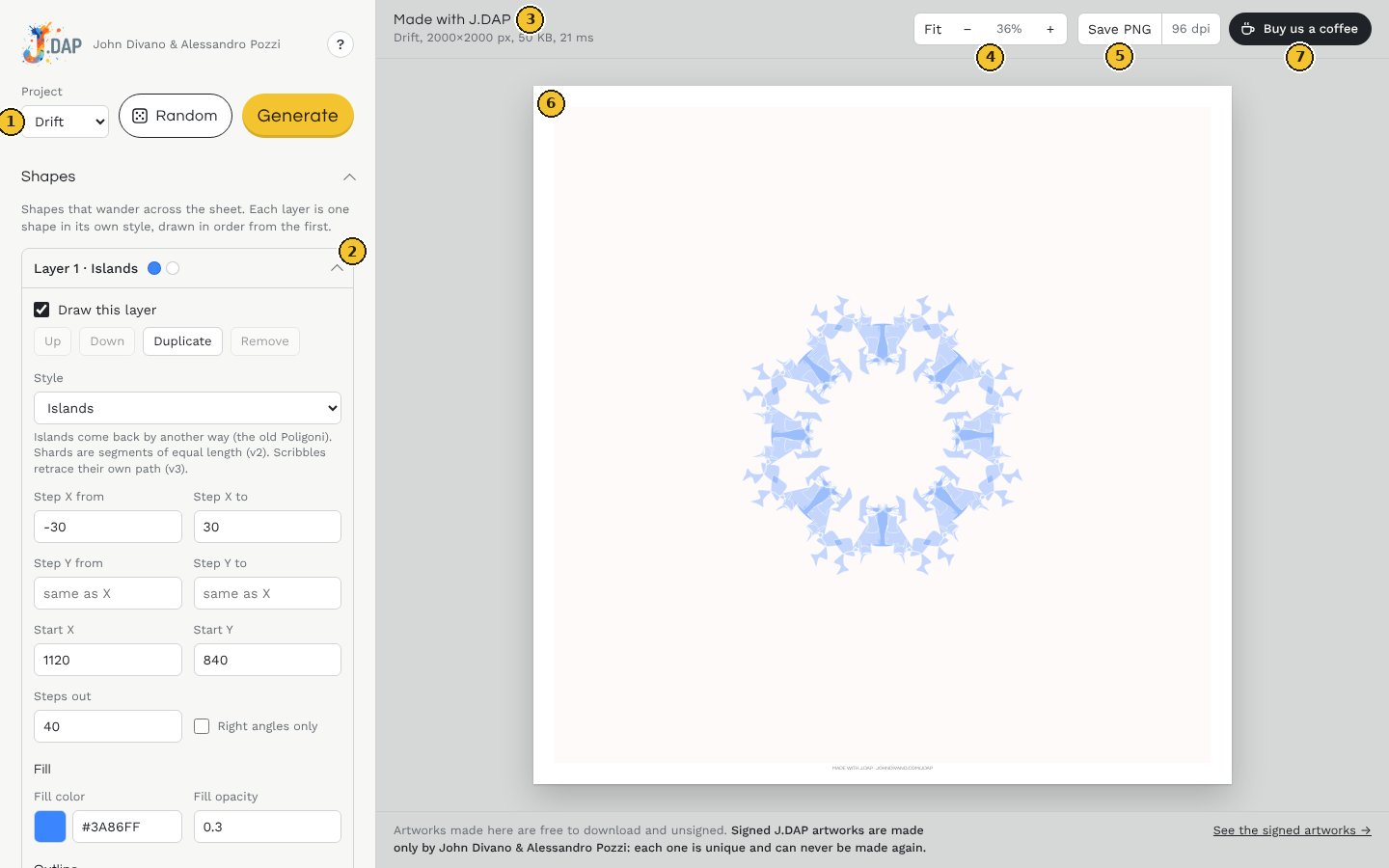
Project, Random e Generate: scegli il progetto, mescola a caso le sue impostazioni (vedi Random) e crea un'opera nuova.
Shapes: le impostazioni del progetto scelto. Più in basso ci sono Canvas, Colors, Grid e Settings files. Ogni sezione si apre e si chiude cliccando sul titolo.
La scritta Made with J.DAP e una riga di stato con progetto, misura, peso del file e tempo impiegato. Qui compaiono anche i messaggi quando qualcosa non va.
Zoom: Fit adatta l'opera alla finestra, − e + la rimpiccioliscono e la ingrandiscono.
Save PNG: scarica l'opera come immagine PNG a 96 dpi.
L'anteprima dell'opera. Sotto, una nota ricorda che le opere firmate sono uniche, con il link per vederle.
Buy us a coffee: J.DAP è gratuito; se ti piace, puoi sostenerlo con un caffè. Si apre una piccola finestra di Ko-fi sopra la pagina, senza lasciare J.DAP.
Random
Random, accanto a Generate, mescola a caso tutte le impostazioni del progetto aperto e crea subito l'opera: forme, misure, colori, effetti e, in Drift e Lines, anche il numero di livelli. Cambia anche il modo colore, lo sfondo, la griglia e la linea interna della cornice. Non tocca la misura dell'opera, la cornice, la palette e gli altri progetti.
È un punto di partenza: quando esce qualcosa che ti piace, aggiusta le impostazioni a mano e premi Generate. ↶ Undo random, sotto i pulsanti, torna alle impostazioni di prima, anche più volte di seguito.
Sotto molti campi c'è una breve spiegazione in grigio. Alcuni gruppi di impostazioni si aprono e si chiudono; quando dentro hai cambiato qualcosa rispetto ai valori iniziali, accanto al titolo compare la scritta gialla Changed.
Il pulsante ? accanto al logo, e Help in fondo al pannello, aprono questa guida in una nuova scheda. Sempre in fondo c'è Reset everything, che riporta tutto come al primo avvio (tutti i progetti con un solo livello, Canvas, colori e palette, griglia).
Opere firmate e non firmate
Le opere che crei qui sono gratuite e non firmate: le scarichi con Save PNG, come immagini a 96 dpi. Al posto della firma, in basso nella cornice, compare la scritta MADE WITH J.DAP · JOHNDIVANO.COM/JDAP.
Le opere firmate
Solo John Divano e Alessandro Pozzi firmano le opere J.DAP. Ogni opera firmata è unica e irripetibile:
porta la firma dei due autori e un numero di serie tutto suo;
il server conserva un'impronta di ogni disegno firmato e non firma mai due volte lo stesso disegno, nemmeno per gli autori;
non si può rifare: anche con le stesse impostazioni, ogni Generate crea un disegno diverso.
Ogni volta che premi Generate nasce un'opera nuova, che non si può ripetere né recuperare: se un'opera ti piace, salvala subito.
Dietro ogni opera c'è un numero scelto a caso dal server tra circa 2,1 miliardi. Anche generando 1.000 opere con esattamente le stesse impostazioni, la probabilità che due siano identiche è di circa lo 0,02%; basta cambiare un'impostazione qualsiasi perché i disegni siano diversi. L'unica eccezione è Lines con le impostazioni di base: vedi Lines.
Ogni opera ha un numero di serie, che nasce dalla data e dall'ora in cui è stata creata (come nel programma desktop). I file che salvi si chiamano made-with-jdap- seguito da quel numero, per esempio made-with-jdap-639-293-877-929-408-948.png. Nelle opere firmate il numero di serie compare anche nella firma.
I progetti
Drift
Forme che vagano per il foglio. Ogni livello è una forma; i livelli si disegnano in ordine, dal primo. In ogni livello scegli lo stile con Style:
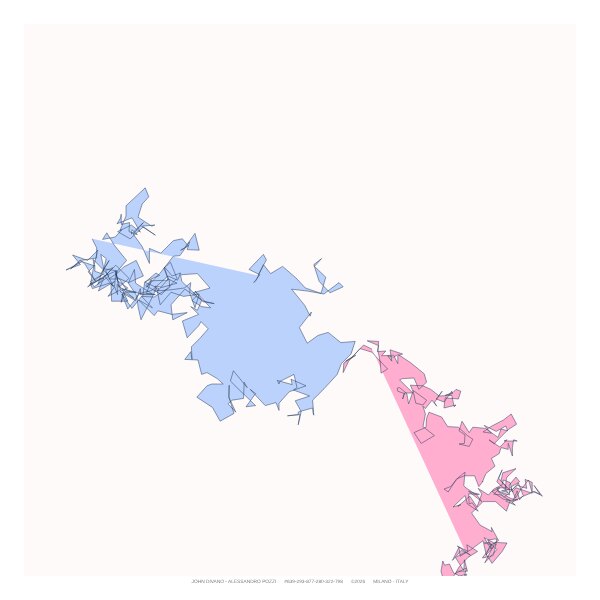
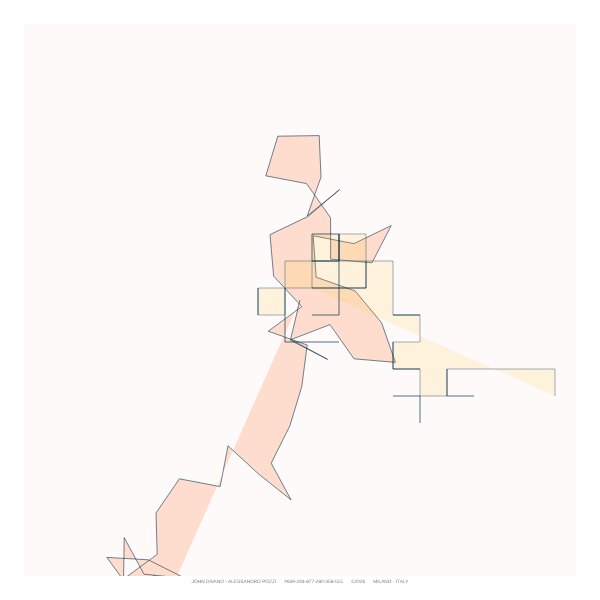
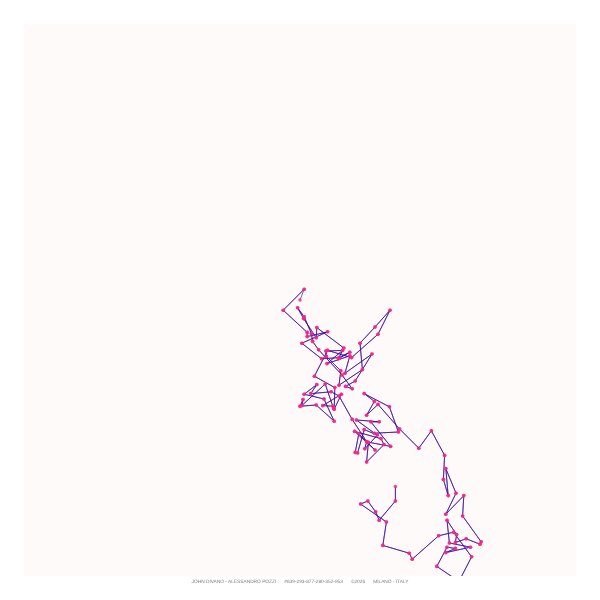
Islands: passi casuali che vanno e tornano per un'altra strada. Macchie e isole. Era Poligoni.Shards: segmenti tutti lunghi uguali, in direzioni casuali. Schegge e cristalli. Era Poligoni v2.Scribbles: va in ogni direzione e ripercorre la stessa strada. Tratti, rami, crepe. Era Poligoni v3.
Cambiando stile, i campi del livello si adattano; se non avevi ancora cambiato i passi, prendono i valori tipici del nuovo stile. Puoi mescolare stili diversi nello stesso disegno.
Impostazioni di ogni livello
Step X from, Step X to
Islands e Scribbles. A ogni passo la forma si sposta in orizzontale di un numero di pixel a caso tra questi due valori. I valori negativi vanno a sinistra: con −30 e 30 si muove in tutte le direzioni.
Step Y from, Step Y to
Lo stesso in verticale. Vuoti = come X. Se sono diversi da X la forma si allunga in orizzontale o in verticale.
Segment length, Segments
Solo Shards: la lunghezza di ogni segmento in pixel e quanti segmenti.
Start X, Start Y
Il punto di partenza, in pixel dall'angolo in alto a sinistra. Con un'opera di 2000 px il centro è 1000, 1000.
Steps out
Islands e Scribbles: quanti passi fa la forma all'andata (al ritorno altrettanti).
Right angles only
Solo movimenti orizzontali e verticali: angoli retti, come un labirinto.
Fill
Colore e trasparenza del riempimento: 0 = trasparente, 1 = pieno.
Outline
Colore, spessore, trasparenza e tratteggio del contorno. In Dash scrivi n per una linea continua, oppure per esempio 6 4 per 6 pixel di linea e 4 di vuoto.
Circles at each point
Islands e Scribbles: un cerchio su ogni vertice. In Circle size: n = niente cerchi, k30 = raggio 30, 30 = raggio a caso fino a 30. Poi colore, trasparenza e contorno dei cerchi.
Sotto i livelli, l'opzione Bring each shape back to where it started fa tornare le forme verso il punto di partenza. In Islands e Scribbles vale per i livelli con riempimento e senza cerchi.
Effetti (gruppi che si aprono)
Shape
Curved lines: curve morbide al posto delle spezzate. Leave holes where the shape crosses itself: dove la forma si sovrappone, si alternano pieno e vuoto. Bounce off the frame instead of leaving the sheet: la forma rimbalza sulla cornice e resta nel foglio.
Echo
Copie della forma disegnate dietro di lei. Echoes: quante; Shift X per echo e Shift Y per echo: di quanti pixel si sposta ogni copia rispetto alla precedente; Fade the echoes: le copie più lontane sono più chiare.
Symmetry
Ripete il livello attorno al centro del foglio: Mirror left and right, Mirror top and bottom, Mirror both ways, Rotated copies e Kaleidoscope (copie ruotate e specchiate). Per le ultime due, Copies dice quante.
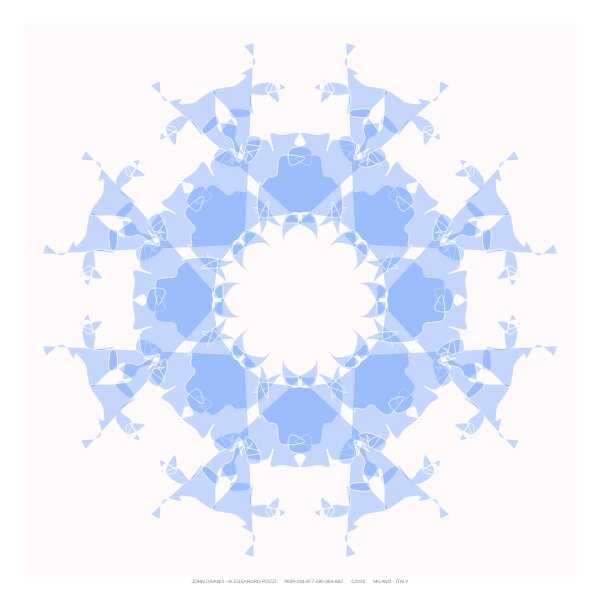
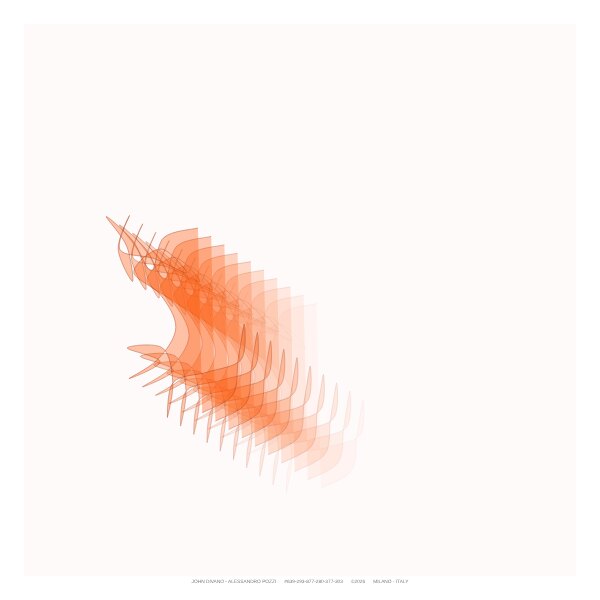
Islands con Kaleidoscope (8 copie) e Curved lines.Shards con Curved lines e 9 Echoes sfumate.
Loves
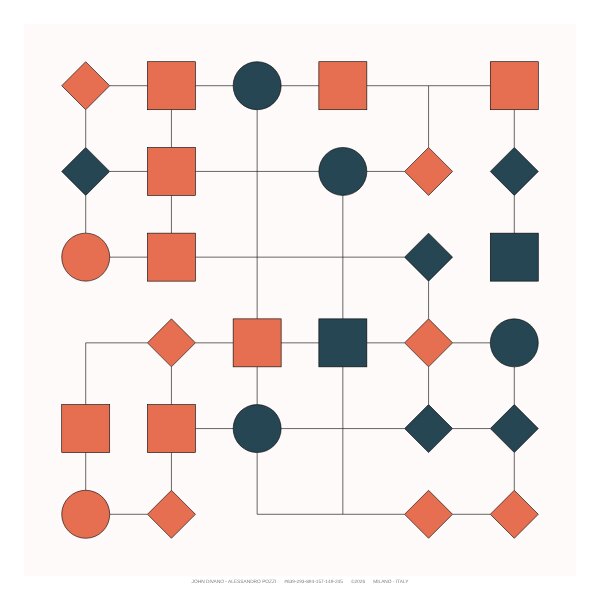
Quadrati, cerchi e rombi su una griglia regolare, uniti da linee casuali.
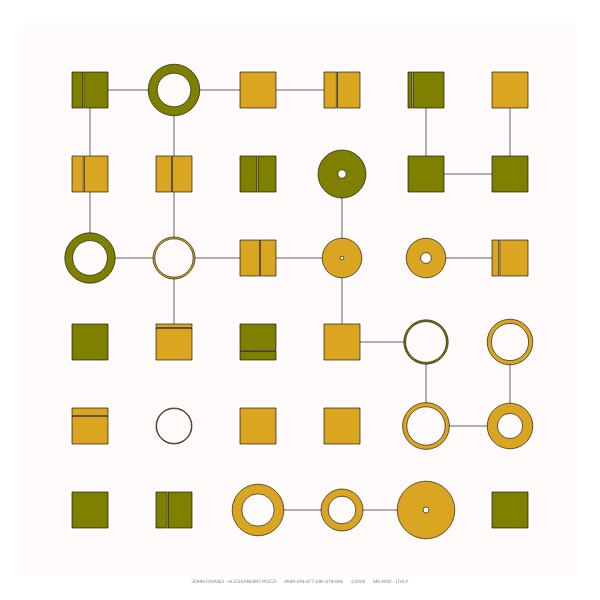
Quadrati divisi, cerchi dentro cerchi e colori alternati.Con Mix of shapes: rombi e caselle vuote dove le linee si incontrano.
Elements (columns x rows)
Quante forme in orizzontale e in verticale, per esempio 6x6.
Size min-max (px)
Per esempio 40-60: i cerchi hanno un diametro a caso tra le due misure; i quadrati usano la minima, a meno di attivare la misura variabile (sotto).
Colori e contorno
Square color, Square opacity, Circle color, Circle opacity, Stroke color, Stroke width, Stroke opacity.
Corner radius
Arrotonda gli angoli dei quadrati.
Line dash, Shape dash
Tratteggio delle linee di collegamento e delle forme (n = continuo).
Alternate the two colors
Ogni forma prende a caso uno dei due colori.
Opzioni
Split some squares in two, Double connecting lines, Circle inside circle. Le linee doppie non sono disponibili quando usi rombi o caselle vuote: non toccherebbero le punte dei rombi e non potrebbero unirsi nelle caselle vuote.
Mix of shapes
Quanto spesso compare ogni forma rispetto alle altre: cerchi, quadrati, rombi e caselle vuote. 50 cerchi e 50 quadrati = metà e metà; 0 = mai. Una casella resta vuota solo se nessuna linea ci arriva, oppure se ne arrivano almeno due: in quel caso le linee proseguono fino al centro e si uniscono, così nessuna resta sospesa nel vuoto.
Variations
Quadrati e rombi di misura variabile come i cerchi; Rings inside circles (anelli concentrici); Random turn up to (°) e Random shift up to (px) per rompere la griglia perfetta. Con questi ultimi due le forme si spostano, quindi le linee possono non toccarle più.
Lines and splits
Connecting lines (%): quante linee di collegamento compaiono; Double line gap (px); Gap in split squares (%).
Lines
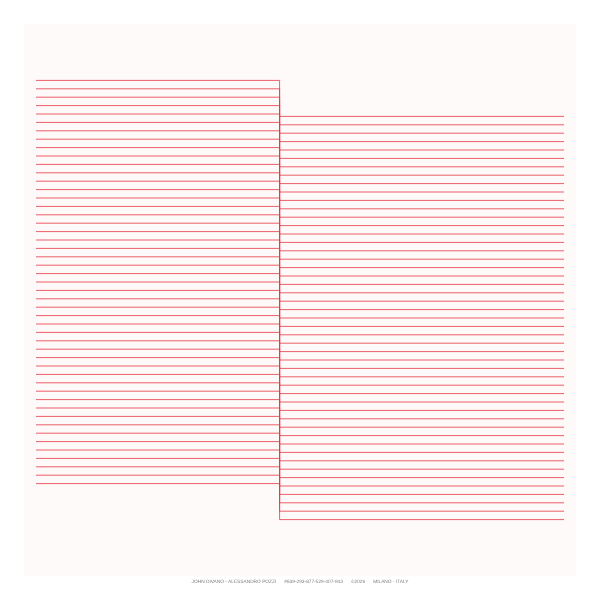
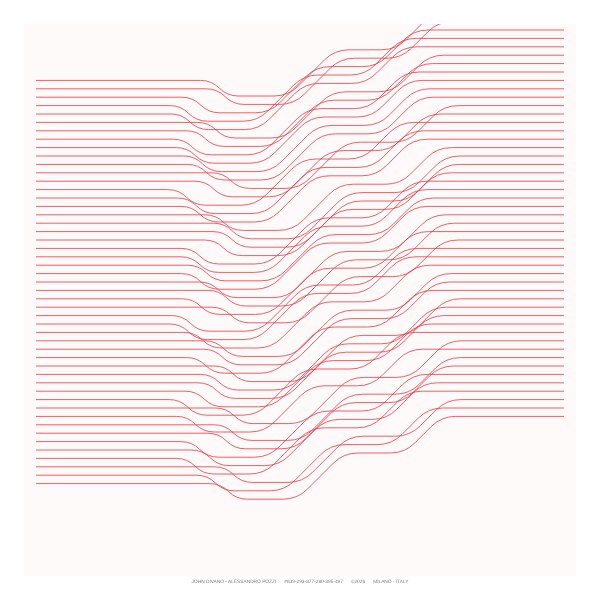
Fasci di linee parallele con dei gradini. Ogni livello è un fascio.
Impostazioni di base: un gradino per linea.3 gradini, altezze casuali, diagonali, angoli arrotondati e spostamento casuale.
Lines and spacing
30-15 = 30 linee a 15 pixel l'una dall'altra.
Step height (px)
Di quanto scende il gradino (con un numero negativo sale).
From X, To X, Start Y
Dove inizia e finisce il fascio in orizzontale, e l'altezza della prima linea.
Random slant
L'ultimo tratto si inclina a caso.
Outline
Colore, spessore, trasparenza e tratteggio. Con colori casuali o dalla palette, ogni linea prende il suo colore.
Steps
Steps per line; Diagonal steps; Random step heights (ogni gradino sale o scende a caso, fino a Step height); Move the step on each line (px) (ogni linea sposta il gradino di questo valore: effetto scala); Random step shift (px); Rounded corners (px).
Texture
Random spacing (px): spaziatura irregolare; Line widths vary: ogni linea ha il suo spessore.
Layout
Vertical lines: il fascio diventa verticale (From X e To X diventano alto e basso, Start Y il bordo sinistro); Symmetry e Copies come in Drift.
Con le impostazioni di base l'unica cosa casuale è la posizione del gradino, quindi i disegni possibili sono circa 1.900. Attiva Random step shift, Random spacing o almeno 2 Steps per line perché ogni opera sia diversa.
Regolo
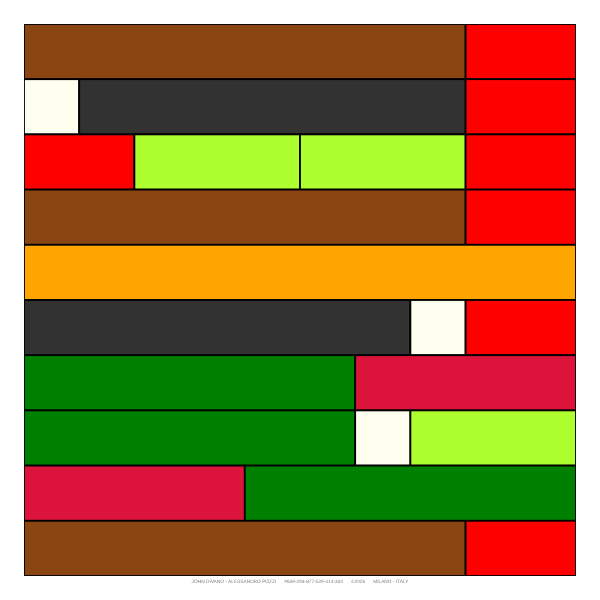
Dieci file di regoli colorati, come i regoli per imparare a contare: ogni lunghezza da 1 a 10 ha sempre lo stesso colore e ogni fila arriva a 10. Usa solo le impostazioni di Canvas; i colori non si cambiano.
Rain
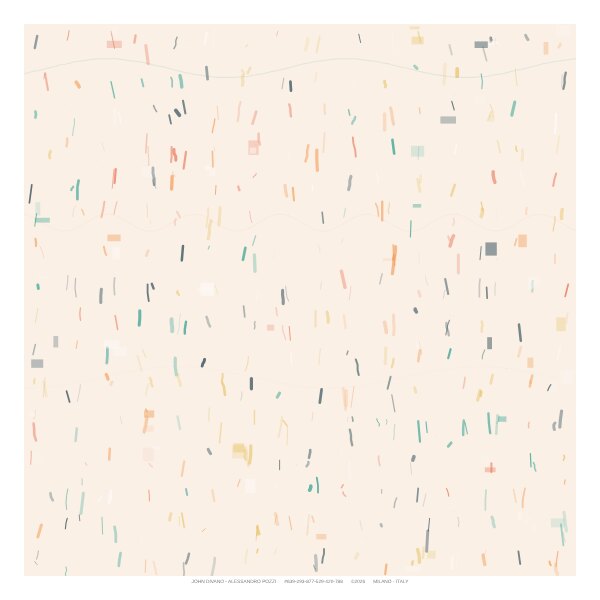
Una trama di brevi tratti, blocchi leggeri e puntini, attraversata da onde morbide. Max columns e Max rows dicono quante celle al massimo; Stroke color e Stroke width il colore e lo spessore dei tratti. Background 1 e 2 colorano alcuni segni. Con colori casuali o dalla palette, i tratti cambiano colore.
Livelli
In Drift e Lines ogni riga di impostazioni è un livello: una forma o un fascio. I livelli si disegnano in ordine, quindi quelli in basso nell'elenco stanno sopra.
Titolo del livello
Clicca per aprirlo o chiuderlo. Mostra lo stile (in Drift) e dei pallini con i colori principali del livello.
Draw this layer
Togli la spunta per nascondere il livello senza cancellarlo.
Up, Down
Spostano il livello nell'ordine di disegno.
Duplicate
Crea una copia subito sotto, con le stesse impostazioni.
Remove
Elimina il livello (ne resta sempre almeno uno).
Add layer
In fondo all'elenco: aggiunge un livello con i valori iniziali.
Canvas, colori, griglia, firma
Canvas
Width, Height (px)
La misura dell'opera in pixel (almeno 100, al massimo 2000). Decide anche la misura di stampa: vedi Salvare e stampare.
Frame (px)
La cornice bianca attorno all'opera. Ospita anche la scritta in basso.
Background 1, Background 2, Background 2 (%)
Lo sfondo è diviso in due: Background 2 occupa questa percentuale dell'altezza partendo dal basso, Background 1 il resto. 100 = tutto Background 2.
Inner border line
Una linea sottile lungo il bordo interno della cornice, con il suo colore e spessore.
Colors
Use the colors set in Shapes
Usa i colori scritti nei campi.
Random named colors
Ogni forma prende uno dei 139 colori con nome del web (nero escluso).
Random colors from the palette
Ogni forma prende un colore della palette.
Cosa cambia con i colori casuali: in Drift riempimento e contorno di ogni livello, in Loves i colori di quadrati e cerchi, in Lines ogni linea, in Rain i tratti. Regolo ha colori fissi.
Palette: clicca un colore per toglierlo; scegline uno nuovo e premi Add to palette. Save palette e Load palette… usano file .txt con il nome della palette nella prima riga e poi un colore per riga.
In tutti i campi colore puoi scrivere un codice come #3A86FF o un nome inglese come Olive o SaddleBrown, oppure cliccare il quadratino e scegliere.
Grid
Draw grid disegna una griglia di linee sotto le forme. Lines dice in quante parti è divisa l'altezza (le celle sono quadrate); poi Color, Width, Opacity e Dash.
Firma
Le opere create qui non sono firmate: in basso, nella cornice, compare la scritta MADE WITH J.DAP · JOHNDIVANO.COM/JDAP. Solo le opere create da John Divano e Alessandro Pozzi sono firmate e numerate: vedi Opere firmate.
Salvare e stampare
Save PNG scarica l'opera come immagine PNG a 96 dpi, con gli stessi pixel dell'opera: al massimo 2000 per lato. Va bene per lo schermo, i social e le stampe piccole: 2000 pixel stampano bene fino a circa 17 cm.
File delle impostazioni
Nella sezione Settings files:
Save grid
Salva in un file .txt le impostazioni di Shapes del progetto aperto, con tutti i livelli (per esempio drift-grid.txt).
Load grid…
Le ricarica nel progetto aperto.
Reset this project
Rimette i valori iniziali del progetto aperto, con un solo livello.
I file sono compatibili con il programma desktop J.DAP: le griglie del desktop si aprono qui, e quelle salvate qui si aprono nel desktop, che ignora le impostazioni nuove. Le griglie dei vecchi Poligoni si aprono in Drift; quelle di Poligoni v2 e v3 vanno messe nello stile Shards o Scribbles.
Il file contiene solo le impostazioni di Shapes: Canvas e colori vanno annotati a parte; la palette ha il suo file.
Domande frequenti
Ho perso le mie impostazioni.
Sono salvate nel browser: cambiando browser o computer, o cancellando i dati di navigazione, ripartono dai valori iniziali. Salva con Save grid quelle a cui tieni.
Voglio ricominciare da capo.
Reset everything, in fondo al pannello, riporta tutti i progetti e tutte le impostazioni all'inizio e toglie i livelli in più. Chiede conferma prima di farlo. Per un solo progetto usa Reset this project in Settings files.
Posso firmare le mie opere?
No: la firma è riservata agli autori, ed è per questo che ogni opera firmata è unica. Le opere che crei qui sono tue da scaricare, senza firma.
Compare "That was a lot of artworks in one minute".
Per tenere il sito veloce per tutti, ogni visitatore può creare fino a 60 opere al minuto. Aspetta qualche secondo e premi di nuovo Generate.
Come posso sostenere J.DAP?
Con un caffè su Ko-fi, oppure condividendo le opere che crei. Grazie!
Compare "This artwork would be larger than 32 MB".
L'opera sarebbe troppo pesante da creare e scaricare. Riduci livelli, Echoes, Copies della simmetria, Steps out o il numero di forme.
Le forme escono dal foglio.
Riduci i passi, sposta Start X e Start Y verso il centro, oppure in Drift attiva Bounce off the frame instead of leaving the sheet.
Non vedo il riempimento.
Controlla Fill opacity: a 0 il riempimento è trasparente. In Scribbles la forma ripercorre se stessa e racchiude pochissima area: è normale.
La scritta in basso ha un carattere diverso.
La scritta usa Century Gothic quando il computer lo ha installato, altrimenti Questrial, molto simile. Per questo un SVG aperto su un altro computer può mostrarla con l'altro carattere.
J.DAP makes generative artworks. Every time you press Generate, a new artwork appears, different from the ones before, following the settings you choose.
The artworks you make here download as PNG images at 96 dpi, at most 2000 pixels on each side.
In four steps
Choose a project in Project.
Press Generate: the artwork appears on the right.
Change the settings in the left panel and press Generate again.
When you like an artwork, save it with Save PNG.
This browser remembers your settings: next time you'll find them as you left them. Another computer or browser won't have them; to take them elsewhere, use the settings files.
The page
Project, Random and Generate: choose the project, mix up its settings at random (see Random) and make a new artwork.
Shapes: the settings of the chosen project. Further down are Canvas, Colors, Grid and Settings files. Click a section's title to open or close it.
The words Made with J.DAP and a status line with the project, size, file weight and time taken. Messages appear here when something goes wrong.
Zoom: Fit fits the artwork to the window; − and + make it smaller or larger.
Save PNG: downloads the artwork as a PNG image at 96 dpi.
The artwork preview. Below it, a note reminds you that signed artworks are one of a kind, with a link to see them.
Buy us a coffee: J.DAP is free; if you enjoy it, you can support it with a coffee. A small Ko-fi window opens over the page, without leaving J.DAP.
Random
Random, next to Generate, mixes up all the settings of the open project at random and makes the artwork straight away: shapes, sizes, colors, effects and, in Drift and Lines, the number of layers too. It also changes the color mode, the background, the grid and the inner border line. It leaves alone the artwork's size, the frame, the palette and the other projects.
It's a starting point: when something you like comes up, fine-tune the settings by hand and press Generate. ↶ Undo random, under the buttons, goes back to the settings before, several times in a row if you like.
Many fields have a short grey explanation below them. Some groups of settings fold open and closed; when you've changed something inside, a yellow Changed label appears next to the title.
The ? button next to the logo, and Help at the bottom of the panel, open this guide in a new tab. Also at the bottom is Reset everything, which puts everything back as at the very start (every project with a single layer, Canvas, colors and palette, grid).
Signed and unsigned artworks
The artworks you make here are free and unsigned: download them with Save PNG, as images at 96 dpi. Instead of the signature, the bottom of the frame reads MADE WITH J.DAP · JOHNDIVANO.COM/JDAP.
Signed artworks
Only John Divano and Alessandro Pozzi sign J.DAP artworks. Every signed artwork is one of a kind and can never be made again:
it carries both artists' signature and a serial number of its own;
the server keeps a fingerprint of every signed drawing and never signs the same drawing twice, not even for the artists;
it can't be remade: even with the same settings, every Generate makes a different drawing.
Every time you press Generate a new artwork appears, which can't be repeated or brought back: when you like one, save it right away.
Behind every artwork is a number the server picks at random from about 2.1 billion. Even after 1,000 artworks with exactly the same settings, the chance that two are identical is about 0.02%; change any setting and the drawings differ. The one exception is Lines with its starting settings: see Lines.
Every artwork has a serial number, which comes from the date and time it was made (as in the desktop app). The files you save are named made-with-jdap- followed by that number, for example made-with-jdap-639-293-877-929-408-948.png. On signed artworks the serial number also appears in the signature.
The projects
Drift
Shapes that wander across the sheet. Each layer is one shape; layers are drawn in order, from the first. Choose each layer's style in Style:
Islands: random steps that go out and come back by another way. Blots and islands. Formerly Poligoni.Shards: segments of equal length in random directions. Splinters and crystals. Formerly Poligoni v2.Scribbles: wanders in every direction, then retraces its path. Strokes, branches, cracks. Formerly Poligoni v3.
When you change style, the layer's fields adapt; if you hadn't changed the steps yet, they take the new style's usual values. You can mix styles in the same artwork.
Settings of each layer
Step X from, Step X to
Islands and Scribbles. At each step the shape moves sideways by a random number of pixels between these two values. Negative values go left: with −30 and 30 it moves in every direction.
Step Y from, Step Y to
The same, up and down. Empty = same as X. Values different from X stretch the shape sideways or upwards.
Segment length, Segments
Shards only: the length of each segment in pixels, and how many segments.
Start X, Start Y
The starting point, in pixels from the top left corner. On a 2000 px artwork the center is 1000, 1000.
Steps out
Islands and Scribbles: how many steps the shape takes on the way out (and as many back).
Right angles only
Only sideways and up-and-down moves: right angles, like a maze.
Fill
Fill color and opacity: 0 = transparent, 1 = solid.
Outline
Outline color, width, opacity and dash. In Dash type n for a solid line, or for example 6 4 for 6 pixels of line and 4 of gap.
Circles at each point
Islands and Scribbles: a circle on every corner. In Circle size: n = no circles, k30 = radius 30, 30 = random radius up to 30. Then the circles' color, opacity and outline.
Under the layers, the option Bring each shape back to where it started makes shapes return toward their starting point. In Islands and Scribbles it applies to layers with a fill and no circles.
Effects (groups that fold open)
Shape
Curved lines: smooth curves instead of straight segments. Leave holes where the shape crosses itself: where the shape overlaps itself, filled and empty areas alternate. Bounce off the frame instead of leaving the sheet: the shape bounces off the frame and stays on the sheet.
Echo
Copies of the shape drawn behind it. Echoes: how many; Shift X per echo and Shift Y per echo: how many pixels each copy moves from the one before; Fade the echoes: farther copies are lighter.
Symmetry
Repeats the layer around the center of the sheet: Mirror left and right, Mirror top and bottom, Mirror both ways, Rotated copies and Kaleidoscope (rotated and mirrored copies). For the last two, Copies sets how many.
Islands with Kaleidoscope (8 copies) and Curved lines.Shards with Curved lines and 9 faded Echoes.
Loves
Squares, circles and diamonds on a regular grid, joined by random lines.
Split squares, circles inside circles and alternating colors.With Mix of shapes: diamonds, and empty cells where lines meet.
Elements (columns x rows)
How many shapes across and down, for example 6x6.
Size min-max (px)
For example 40-60: circles get a random diameter between the two sizes; squares use the smaller one unless you turn on varying sizes (below).
Colors and outline
Square color, Square opacity, Circle color, Circle opacity, Stroke color, Stroke width, Stroke opacity.
Corner radius
Rounds the corners of the squares.
Line dash, Shape dash
Dash pattern of the connecting lines and of the shapes (n = solid).
Alternate the two colors
Each shape randomly takes one of the two colors.
Options
Split some squares in two, Double connecting lines, Circle inside circle. Double lines aren't available when you use diamonds or empty cells: they would miss the diamonds' points and couldn't meet in empty cells.
Mix of shapes
How often each shape appears compared with the others: circles, squares, diamonds and empty cells. 50 circles and 50 squares = half and half; 0 = never. A cell stays empty only if no line reaches it, or if two or more do: then the lines carry on to its middle and join, so none is left hanging.
Variations
Squares and diamonds vary in size like circles; Rings inside circles (concentric rings); Random turn up to (°) and Random shift up to (px) to break the perfect grid. These last two move the shapes, so lines may no longer touch them.
Lines and splits
Connecting lines (%): how many connecting lines appear; Double line gap (px); Gap in split squares (%).
Lines
Bundles of parallel lines with steps in them. Each layer is one bundle.
Starting settings: one step per line.3 steps, random heights, diagonals, rounded corners and random shift.
Lines and spacing
30-15 = 30 lines, 15 pixels apart.
Step height (px)
How far the step goes down (a negative number goes up).
From X, To X, Start Y
Where the bundle starts and ends across the sheet, and the height of the first line.
Random slant
The last stretch tilts at random.
Outline
Color, width, opacity and dash. With random or palette colors, each line gets its own color.
Steps
Steps per line; Diagonal steps; Random step heights (each step goes up or down at random, up to Step height); Move the step on each line (px) (each line moves its step by this much, for a staircase effect); Random step shift (px); Rounded corners (px).
Texture
Random spacing (px): uneven spacing; Line widths vary: each line gets its own width.
Layout
Vertical lines: the bundle turns vertical (From X and To X become top and bottom, Start Y the left edge); Symmetry and Copies as in Drift.
With the starting settings the only random thing is where the step falls, so there are about 1,900 possible drawings. Turn on Random step shift, Random spacing or at least 2 Steps per line to make every artwork different.
Regolo
Ten rows of colored rods, like the rods children use to learn counting: each length from 1 to 10 always has the same color, and every row adds up to 10. It uses only the Canvas settings; the colors are fixed.
Rain
A texture of short strokes, faint blocks and dots, crossed by soft waves. Max columns and Max rows set the largest number of cells; Stroke color and Stroke width the strokes' color and width. Background 1 and 2 tint some of the marks. With random or palette colors, the strokes change color.
Layers
In Drift and Lines each row of settings is a layer: one shape or one bundle. Layers are drawn in order, so the ones lower in the list sit on top.
Layer title
Click to open or close it. It shows the style (in Drift) and dots with the layer's main colors.
Draw this layer
Untick to hide the layer without deleting it.
Up, Down
Move the layer in the drawing order.
Duplicate
Makes a copy right below, with the same settings.
Remove
Deletes the layer (at least one always remains).
Add layer
At the end of the list: adds a layer with the starting values.
Canvas, colors, grid, signature
Canvas
Width, Height (px)
The artwork's size in pixels (at least 100, at most 2000). It also sets the print size: see Saving and printing.
Frame (px)
The white frame around the artwork. The words at the bottom sit in it.
Background 1, Background 2, Background 2 (%)
The background is split in two: Background 2 fills this percentage of the height from the bottom, Background 1 the rest. 100 = all Background 2.
Inner border line
A thin line along the inside edge of the frame, with its own color and width.
Colors
Use the colors set in Shapes
Uses the colors typed in the fields.
Random named colors
Each shape takes one of the 139 named web colors (black excluded).
Random colors from the palette
Each shape takes a color from the palette.
What random colors change: in Drift each layer's fill and outline, in Loves the square and circle colors, in Lines each line, in Rain the strokes. Regolo has fixed colors.
Palette: click a color to remove it; pick a new one and press Add to palette. Save palette and Load palette… use .txt files with the palette's name on the first line, then one color per line.
In every color field you can type a code like #3A86FF or a name like Olive or SaddleBrown, or click the small square and pick one.
Grid
Draw grid draws a grid of lines under the shapes. Lines sets how many parts the height is divided into (the cells are square); then Color, Width, Opacity and Dash.
Signature
The artworks made here are unsigned: the bottom of the frame reads MADE WITH J.DAP · JOHNDIVANO.COM/JDAP. Only the artworks made by John Divano and Alessandro Pozzi are signed and numbered: see Signed artworks.
Saving and printing
Save PNG downloads the artwork as a PNG image at 96 dpi, with the same pixels as the artwork: at most 2000 on each side. It's right for screens, social media and small prints: 2000 pixels print well up to about 17 cm (6.7 in).
Settings files
In the Settings files section:
Save grid
Saves the open project's Shapes settings, with all layers, to a .txt file (for example drift-grid.txt).
Load grid…
Loads them back into the open project.
Reset this project
Puts back the open project's starting values, with a single layer.
The files work with the J.DAP desktop app: desktop grids open here, and grids saved here open in the desktop app, which ignores the new settings. Grids of the old Poligoni open in Drift; those of Poligoni v2 and v3 need the Shards or Scribbles style.
The file holds only the Shapes settings: note Canvas and colors separately; the palette has its own file.
Questions
My settings are gone.
They're stored in the browser: a different browser or computer, or clearing browsing data, starts from the starting values. Save the ones you care about with Save grid.
I want to start over.
Reset everything, at the bottom of the panel, puts every project and setting back to the start and removes extra layers. It asks before doing it. For one project only, use Reset this project in Settings files.
Can I sign my artworks?
No: the signature belongs to the artists, which is why every signed artwork is one of a kind. The artworks you make here are yours to download, unsigned.
"That was a lot of artworks in one minute" appears.
To keep the site fast for everyone, each visitor can make up to 60 artworks a minute. Wait a few seconds and press Generate again.
How can I support J.DAP?
With a coffee on Ko-fi, or by sharing the artworks you make. Thank you!
"This artwork would be larger than 32 MB" appears.
The artwork would be too heavy to make and download. Use fewer layers, Echoes or symmetry Copies, fewer Steps out, or fewer shapes.
Shapes leave the sheet.
Use smaller steps, move Start X and Start Y toward the center, or in Drift turn on Bounce off the frame instead of leaving the sheet.
I can't see the fill.
Check Fill opacity: at 0 the fill is transparent. In Scribbles the shape retraces itself and encloses very little area; that's expected.
The words at the bottom look different.
They use Century Gothic when the computer has it installed, otherwise the very similar Questrial. So an SVG opened on another computer may show them in the other font.